This blog is to share my experiences and learnings on Oracle Database,EBS,OCI & Ansible.
Wednesday, May 4, 2022
EBS 12.2 ADOP useful Queries
Tuesday, May 3, 2022
How to open discoverer plus in Microsoft Edge Browser
We all know oracle discoverer is already out of support from June 2014 onwards and It worked in the Internet explorer ,older versions of Mozilla & Edge . Internet Explorer is only a few months away from retirement & will be officially retired on June 15, 2022 .IE will fall out of support for multiple versions of Windows 10 & using the old version of browsers would not be secure. We can use the below workaround to access discoverer on Edge.
Solution:
IE mode in Edge allows organizations to continue to use legacy elements of Internet Explorer but within Microsoft Edge. Please follow below steps as a workaround.
Enable IE mode on Microsoft Edge (One Time Setup)
To enable IE mode on Edge,
Please follow these steps:
- Open Microsoft
Edge on Windows 10 & Click the Settings under menu button on
the top-right corner.
- Select
the Settings option.
- Click
on Default browser.
- Under the “Internet
Explorer compatibility” section , Please select allow under “Allow
sites to be reloaded in Internet Explorer mode”
- Click
the Restart button.
- After restart, Please enter the discoverer URL.
- Click menu button on the top-right corner & click on "Reload in internet explorer mode"
- Login using normal procedure & it should open forms now.
Sunday, June 20, 2021
How to setup AD bridge on IDCS
What is AD bridge
The Microsoft Active Directory (AD) Bridge provides a link between your AD enterprise directory structure and Oracle Identity Cloud Service. Oracle Identity Cloud Service can synchronize with this directory structure so that any new, updated, or deleted user or group records are transferred into Oracle Identity Cloud Service.
Synchronization Flow & Allowed Operations:
AD to IDCS synchronization (Mandatory) - Create/Update/Delete users from AD to IDCS
IDCS to AD synchronization (optional) - Update/Deactivate ( No create/Delete operations allowed)
Prerequisites :
Set Permissions for Your Microsoft Active Directory (AD) Account
1. Create the service account in AD
2. In order to setup AD to IDCS synchronization, Please grant Generic Read permissions for the users, groups, and organizational units (OU) in the AD domain that you want to import into Oracle Identity Cloud Service:
dsacls "DC=jay,DC=local" /I:T /g "jay.local\sanjeev:GR"
3. If you want to setup IDCS to AD sync (optional) , then please grant Generic Write permission for the users, groups, and organizational units (OU) in the AD domain,
dsacls "DC=jay,DC=local" /I:T /g "jay.local\sanjeev:GW"
Certified Components
- With the Microsoft Active Directory (AD) Bridge, Oracle Identity Cloud Service can connect to your AD enterprise directory structure. The following table lists the certified versions for Oracle Identity Cloud Service,AD, your operating system, and the Microsoft .NET software framework (which is required for the AD Bridge to run).
- Please create the machine (for deploying AD bridge) that’s attached to the Microsoft Active Directory domain for auto discovery & Make sure firewall is opened to reach IDCS.
Create a Microsoft Active Directory (AD) Bridge
To create a Microsoft Active Directory (AD) Bridge that provides a link between your AD enterprise directory structure and Oracle Identity Cloud Service, you must be assigned to either the identity domain administrator role or the security administrator role
- In the Identity Cloud Service console, expand the Navigation Drawer, click Settings, and then click Directory Integrations and click Add a Microsoft Active Directory Bridge.
- Make a note of the Identity Cloud Service URL, Client ID, and Client Secret.
- Click Download. Oracle Identity Cloud Service downloads the client for the AD Bridge.
- FTP the ad-id-bridge.exe file to window server which was created in earlier step.
Install AD bridge
- To install the client for the AD Bridge, double-click the ad-id-bridge.exe file.The Welcome to AD Bridge Installer window appears.In the Language Selection area,
- select the language that you want to use to install the client for the AD Bridge, and then click OK. The Identity Cloud Service Microsoft Active Directory Bridge Installer appears.
- In the Welcome dialog box, click Next.
- In the Specify Proxy Server dialog box:
If your organization has a firewall in place and requires communication to be handled using an HTTP Proxy Server, then select Use Proxy Server. If you select this check box, then provide the full path (or address) of the proxy server and the administrator credentials for connecting to the proxy server.
If your organization doesn’t require communication to be handled using an HTTP Proxy Server, then don't select Use Proxy Server.
Click Next.
In the Specify Identity Cloud Service Credentials dialog box:
Provide the Cloud Service URL, Client ID, and Client Secret.
Click Test.
The AD Bridge attempts to connect to the Oracle Identity Cloud Service server.
If a connection can be established, then a Connection Successful! confirmation message appears.
Otherwise, you’ll receive an error message, indicating that you entered an incorrect Cloud Service URL, Client ID, or Client Secret. Modify the incorrect values, and click Test again.
Click Next.
In the Specify Microsoft Active Directory Credentials dialog box, provide the following connection details to the AD server:
Username: The AD account that the AD Bridge uses to access the AD server.
Password: The password for the AD account.
Use SSL: If you're connecting to the server via an SSL connection, then leave this check box selected. Otherwise, deselect it.
In the Identity Cloud Service console, access the Directory Integrations page. The AD Bridge that you created for the AD domain appears with a status of Partially Configured. The bridge is created, but not configured. See Configure a Microsoft Active Directory (AD) Bridge for more information about configuring this bridge.
Note:
If you don't see the AD Bridge in the Directory Integrations page, then refresh your web browser. Also, you can create only one bridge per AD domain.
Configure a Microsoft Active Directory (AD) Bridge
You can access the Managing Security Settings infographic to see how to configure an AD Bridge.
In the Identity Cloud Service console, expand the Navigation Drawer, click Settings, and then click Directory Integrations -->Click the AD Bridge that you want to configure.
Note : The bridge has a status of Partially Configured.
In the Configure the Microsoft Active Directory Domain page, configure the AD domain to poll for changes to users or groups in AD and import those changes into Oracle Identity Cloud Service. In the Select organizational units (OUs) for users and Select organizational units (OUs) for groups panes:
Sunday, April 4, 2021
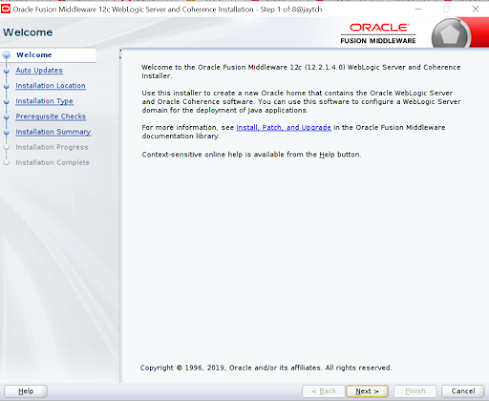
Installation of Weblogic 12c (12.2.1.4) on Linux
Prerequisites:
a. Download JDK1.8 (jdk-8u281-linux-x64.tar.gz) from below link.
https://www.oracle.com/java/technologies/javase/javase-jdk8-downloads.html
b. Download weblogic 12.2.1.4 (fmw_12.2.1.4.0_wls_Disk1_1of1.zip) from below link.
https://www.oracle.com/in/middleware/technologies/weblogic-server-downloads.html
c. Create user webadmin who installs and configures weblogic server.
useradd webadmin
d. Create the prerequisite directory to hold oracle WebLogic software
mkdir /u01/app/web_12214
mkdir /u01/app/oraInventory
e. create /etc/oraInst.loc & add the below lines.
inventory_loc=/u01/app/oraInventory
inst_group=webadmin
f. Stage the software under /u01/app/softwares .
[webadmin@jaytch softwares]$ pwd
/u01/app/softwares
[webadmin@jaytch softwares]$ ls -ltr
total 986544
-rw-rw-r--. 1 opc opc 866494253 Apr 4 07:56 fmw_12.2.1.4.0_wls_Disk1_1of1.zip
-rw-rw-r--. 1 webadmin webadmin 143722924 Apr 4 10:27 jdk-8u281-linux-x64.tar.gz
[webadmin@jaytch softwares]$ unzip fmw_12.2.1.4.0_wls_Disk1_1of1.zip
Archive: fmw_12.2.1.4.0_wls_Disk1_1of1.zip
inflating: fmw_12.2.1.4.0_wls.jar
Installation:
| Step | Window/Page Description | Choices or Values |
|---|---|---|
| a. | Step 1 of 9 - Welcome | Click Next. |
| b. | Step 2 of 9 - Auto Updates | Select Skip Auto Updates. Click Next. |
| c. | Step 3 of 9 - Installation Location | Enter /u01/app/web_12214 for Oracle Home. Click Next. |
| d. | Step 4 of 9 - Installation Type | Select Complete with Examples. [ If it is production box, Please choose weblogic server ] Click Next. |
| e. | Step 5 of 9 - Prerequisite Checks | Click Next. |
| f. | Step 6 of 9 - Security Updates | Unselect I wish to receive security updates via My Oracle Support. Click Next. |
| g. | My Oracle Support Username/Email Address Not Specified | Click Yes. |
| h. | Step 7 of 9 - Installation Summary | Click Install. |
| i. | Step 8 of 9 - Installation Progress | Click Next. |
| j. | Step 9 of 9 - Installation Complete | Click Finish. |

Environment File Setup:
Creating Weblogic Domain:
Start the Services:
Saturday, April 3, 2021
R12.2 Forms Server Fails With "Could not reserve enough space for object heap" on OEL6
a. Login as root user & execute prelink -u --all
How to Compile Forms , Reports & Custom.pll in R12.2
How to Compile Custom.pll cd $AU_TOP/resource cp CUSTOM.plx CUSTOM.plx_bkup cp CUSTOM.pll CUSTOM.pll_bkup frmcmp_batch module=CUSTOM.pl...
-
Prerequisites: a. Download JDK1.8 (jdk-8u281-linux-x64.tar.gz) from below link. https://www.oracle.com/java/technologies/javase/javase-j...
-
What is AD bridge The Microsoft Active Directory (AD) Bridge provides a link between your AD enterprise directory structure and Oracle Ident...
-
How to Compile Custom.pll cd $AU_TOP/resource cp CUSTOM.plx CUSTOM.plx_bkup cp CUSTOM.pll CUSTOM.pll_bkup frmcmp_batch module=CUSTOM.pl...